
What Is ChatGPT Atlas? An Easy-to-Understand Explanation of Its Capabilities and Precautions
Recently, a new mode called “**Atlas**” added to ChatGPT has been generating a lot of buzz. This feature is a bit different from the traditional chat—so what ex
3 min read
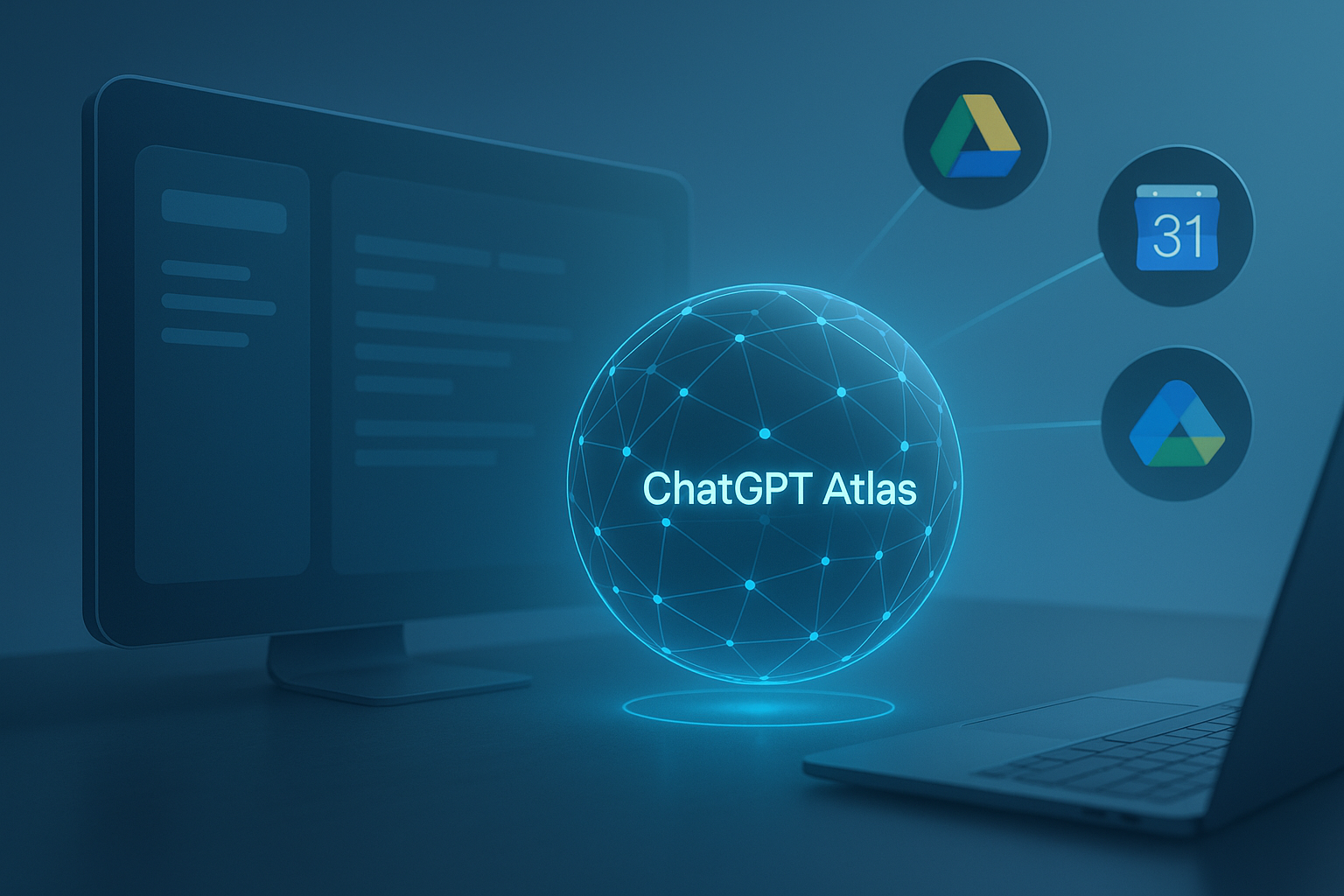
Recently, a new mode called “Atlas” added to ChatGPT has been generating a lot of buzz.
This feature is a bit different from the traditional chat—so what exactly can it do, and what should you keep in mind?
What Is ChatGPT Atlas?
ChatGPT Atlas is a new interface that allows you to manage ChatGPT’s “extensions” and “integrations” in a unified way.
Simply put, it acts as a hub designed to transform ChatGPT into a “more practical AI assistant.”
Its main features are as follows:
-
Integration with Files and Email
It syncs with Google Drive, Gmail, Calendar, and other services, allowing you to check your schedule and search for files.
(Examples: “Open the invoice I received yesterday,” “Tell me when my next meeting is,” etc.) -
Web Search and Real-Time Information Retrieval
It allows you to look up the latest news and trends with greater accuracy than before. -
Automation and Task Integration
It also includes a feature that lets you set up recurring tasks (such as news updates and reminders) directly within ChatGPT.
In short, Atlas acts as a “control panel where AI connects your life and information.”
Points to Note — Especially Regarding Personal Information
While convenient, you must exercise extreme caution when handling personal information.
Be sure to understand the following points.
-
Google Account Integration Is Optional
If you grant permission, the AI will be able to access your Gmail and Calendar.
For peace of mind, enable this only when necessary and avoid keeping it connected at all times. -
Restrictions may apply for corporate or school accounts
Depending on administrative policies, Atlas access may be restricted or subject to audit. -
Do not enter confidential information directly
Avoid entering information such as addresses, phone numbers, passwords, or contract details via Atlas.
It is safest to limit its use strictly to “general information” and “task support.” -
Check your data storage settings
In the ChatGPT settings menu, you can “Save History” or “Revoke Permissions.”
It’s a good idea to check these settings after each use for peace of mind.
Tips for Effective Use
- For everyday tasks, use it for light support such as “email summaries” and “organizing schedules.”
- For blog management and document creation, it’s useful for “referencing documents” and “summarizing spreadsheets.”
- However, the golden rule is to never let it handle personal or confidential company data.
My Impressions After Trying It
When I actually tried Atlas, I got the sense that ChatGPT has become even more “realistic.”
It feels just like having a personal assistant who knows “where everything is.”
However, I also feel that this makes striking a balance between trust and caution all the more important.
Using it while deciding for yourself “how much to entrust to it”—that’s the smart way to approach the Atlas era.
In the next post, I plan to summarize the actual setup process and steps for safe usage.
→ Related Article: [ChatGPT Atlas Setup and Integration Mechanisms (Coming Soon)]