
What Is ChatGPT Images 2.0? | A Detailed Explanation of Its Capabilities, New Features, and Use Cases
Based on the latest information about ChatGPT Images 2.0, this article summarizes what it can do, how it differs from previous versions, recommended uses, and points to keep in mind. It provides an easy-to-understand explanation for anyone new to image generation and editing.
16 min read
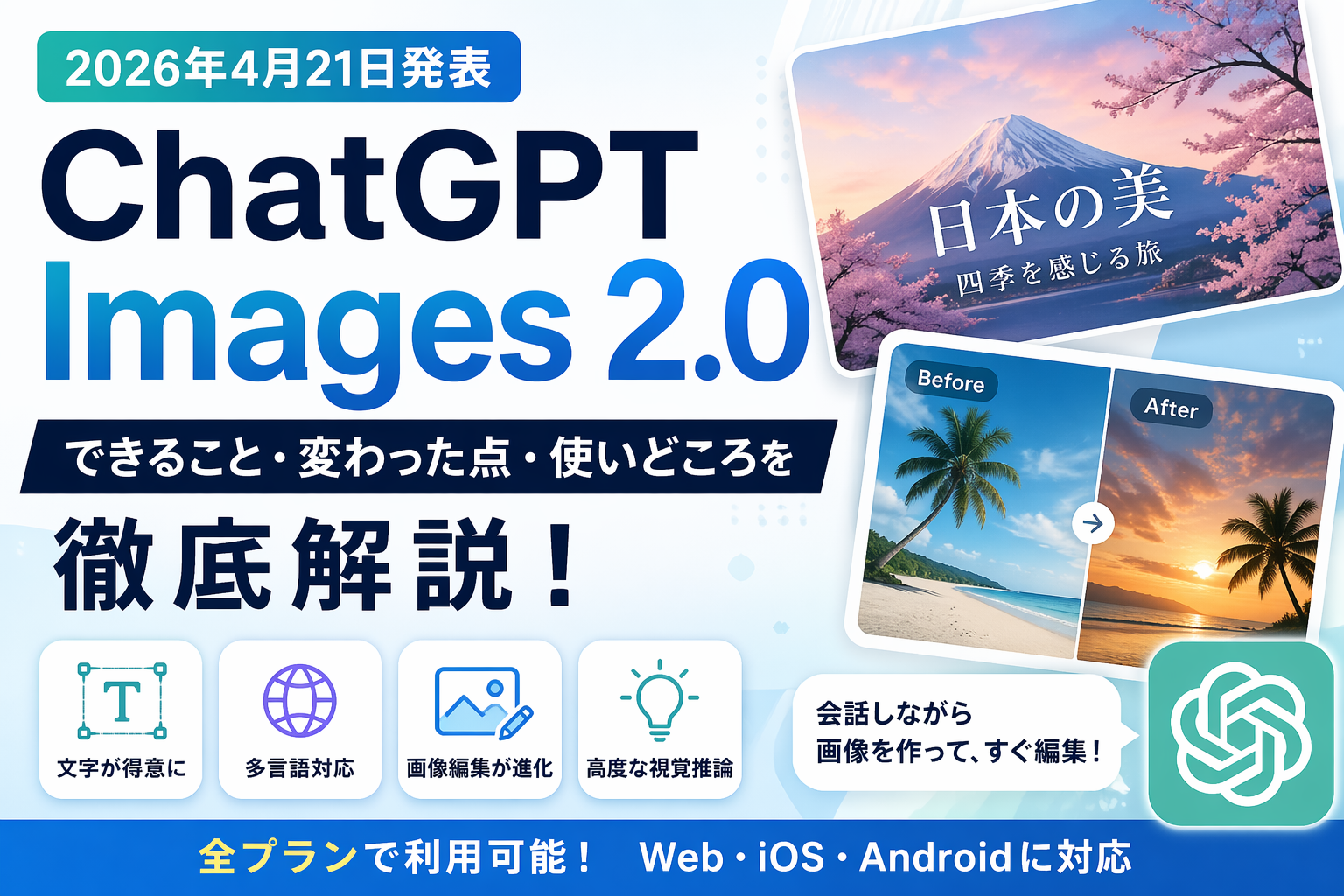
With so many image-generating AIs on the market, it’s hard to tell which ones excel at what. I think many of you feel this way. Especially those who use ChatGPT regularly are likely wondering, “Just how far can ChatGPT go with images?” and “Has it really become easier to use than before?” So based on OpenAI’s official announcement, official help documentation, official release notes, and official system card, I’ll break down the details of ChatGPT Images 2.0, which was announced on April 21, 2026. From a practical perspective, I’ll calmly examine what’s improved, where it excels, and—conversely—what you should watch out for.
What Is ChatGPT Images 2.0?
To put it simply, ChatGPT Images 2.0 is a new image generation and editing feature available within ChatGPT. According to the announcement on OpenAI’s official website, major improvements include enhanced accuracy in text-to-image generation, multilingual support, and advanced visual reasoning. OpenAI’s official release notes, dated April 21, 2026, announced the launch of this feature within ChatGPT. The official help section states that ChatGPT Images 2.0 is available on all plans.
What’s important at this point is that it’s not just a “picture-making feature”—it’s been integrated into ChatGPT’s workflow, encompassing images with text, editing existing images, and generating layouts that faithfully follow instructions. In other words, the process of creating images while conversing, making adjustments on the spot, saving them, and reusing them has become much more natural.
The advantage is that you can work on both writing and image creation in the same place. It makes it easier to create blog header images, social media banners, explanatory diagrams, and product visuals without having to switch to a separate service. The downside is that it isn’t a one-size-fits-all solution. For tasks requiring precise pixel management—such as fixed, detailed compositions or full-scale commercial design projects—dedicated design tools are often more suitable.
Based on my personal observations, the usability of image AI is determined less by “whether it can produce results” and more by “how easy it is to edit them.” It’s natural to view this 2.0 update as one that places significant emphasis on that ease of editing.
Basic Information Confirmed Officially
- Information sources: OpenAI official website, official help, official release notes, and official system card
- OpenAI official announcement date: April 21, 2026
- The official OpenAI release notes also indicate that the feature became available within ChatGPT on April 21, 2026
- The official help documentation states that ChatGPT Images 2.0 is available across all tiers
- The official help documentation states that it is available on the web, iOS, and Android
How to Interpret This
- Rather than a standalone new feature for image generation, this update deeply integrates image capabilities into ChatGPT’s workflow
- It facilitates a back-and-forth process of text → image generation → image editing → regeneration
- While it’s easy for beginners to get started with, it cannot be said to be a complete replacement for dedicated design tools
- It’s easiest to evaluate it by asking, “How quickly can I create everyday designs?”
What Has Improved? | Features That Are Now More Practical Than Before
The most obvious improvement is its ability to handle images that contain text. OpenAI’s official announcement explicitly mentions improvements to text rendering. This is particularly effective for posters, headline images, infographics, comic-style panels, and visuals with captions. Previous image-generation AI had a weakness: while it could create visually appealing images, text often appeared distorted or contained spelling errors. ChatGPT Images 2.0 prominently highlights improvements addressing this weakness.
The next most important improvement is multilingual support. The official OpenAI announcement highlights multilingual text rendering as an area of enhancement. For Japanese users, this is a major advancement, and it can be seen as a step forward from image generation that was previously limited to English.
Furthermore, OpenAI’s official system card explains that there have been major advancements in world knowledge, instruction following, detail and complexity, and the handling of dense text. In other words, this update tends to make a bigger difference in images with a high information density, those containing multiple elements, and those requiring consistency between composition and content, rather than in simple single-image scenes.
The benefit is that it has become easier to create images that are closer to practical, real-world applications. The downside is that including too many requirements can actually increase ambiguity. The more advanced the system becomes, the more the clarity of your instructions affects the results.
In my experience, as image AI performance improves, it becomes less of a tool where “even vague requests yield amazing results” and more of one where “those who carefully articulate their intent benefit.” This update is a clear step in that direction.
Officially Confirmed Improvements
- Improved accuracy in text-to-image generation
- Enhanced multilingual support
- Advanced visual reasoning
- Stronger adherence to instructions
- Improved handling of complex details and information-rich images
- Support for flexible aspect ratios
- Support for transparent backgrounds
- Enhanced editing capabilities for existing images
Benefits of These Improvements
- Easier to create images with title text
- Easier to experiment with content involving Japanese
- Improved accuracy for diagrams and explanatory images
- Easier to repurpose for blogs, social media, and creating materials
- Easier to use with the expectation of re-editing images
Drawbacks and Precautions of These Improvements
- Although text generation has improved, final verification is still necessary
- Results may not be perfect on the first try
- Overloading images with information can lead to poor results
- Human review is still essential for fine-tuning alignment and managing margins
- Separate adjustments are required for projects that must strictly adhere to brand guidelines
What You Can Do with ChatGPT Images 2.0
There are three main functions: generating new images, editing existing images, and regenerating images within the flow of a conversation. The official OpenAI Help explains that you can create new images from text, upload and edit existing images, and use the selection tool to modify only specific parts.
This makes it easier to perform tasks such as “creating a landscape-oriented OGP image for a blog,” “changing only the background,” “keeping the person the same while changing their clothes,” or “correcting only the text on a sign.” Furthermore, you can either open an image and edit it using the editing tools or simply give editing instructions directly within the conversation.
The advantage is that it’s well-suited for projects where revisions are expected. In many cases, it’s faster to produce a 70-point image and refine it from there than to aim for a perfect 100-point image from the start. The downside is that specified editing areas aren’t always applied with pinpoint accuracy. Even the official OpenAI Help states that edits may sometimes extend beyond the selected area.
In practice, image editing AI often results in situations where “I only wanted to change that specific part, but the overall feel of the image has shifted slightly as well.” Since this is more a feature of the system than a failure, it’s safer to edit in stages, especially when the final use case is highly specific.
Specific Examples of What You Can Do
- Create new images from text
- Upload and edit existing images
- Select and modify only a portion of an image
- Create images with transparent backgrounds
- Regenerate images with different aspect ratios
- Save images for later reuse
- Revise images by giving new instructions directly within the chat thread
Ideal Uses for Blog Management
- Creating rough drafts of OGP images
- Creating landscape-oriented visuals for featured images
- Creating conceptual diagrams or illustrative images for articles
- Creating explanatory images for social media posts
- Cleaning up or replacing the background of existing images
- Quickly generating multiple variations on the same theme
Points to Keep in Mind
- Edited results may not match the selected area exactly
- It’s best to zoom in on images with text to check for typos
- Final checks are required for people, hands, and fine details
- Handle elements related to trademarks and copyrights with care
- Be sure to check the terms of use for generated images based on your intended purpose
Beyond just image generation, the “think before you create” workflow has become more common
A key feature not to be missed in this update is “Images with Thinking.” The official OpenAI release notes introduce this as a feature that allows users to spend more time planning and refining their images before generation. According to the official help documentation, it is available on Plus, Pro, and Business plans, with plans to roll it out to Enterprise and Edu in the future.
This isn’t simply a matter of slower processing; it represents an evolution toward generating images only after carefully refining composition and content consistency. For example, this feature is likely to be particularly beneficial for explanatory images with a lot of information, posters involving multiple elements, and projects requiring a cohesive layout.
The advantage is that you can prioritize quality over mass-producing low-quality images. The downside is that it isn’t necessary for every use case. For lighthearted social media images or single-image visuals where atmosphere is the priority, you may not need to overthink things—the results can still be sufficient.
Based on our observations, image AI often involves a trade-off between “speed” and “consistency.” That’s why it’s important to choose between standard generation and “thinking” mode depending on the specific use case.
Situations Where “Images with Thinking” Is Best Suited
- Images with a lot of text
- Images with complex compositions
- Visuals for diagrams or explanations
- Images where you want to organize multiple subjects or elements
- Projects where you want to achieve a high level of quality in a single attempt
Situations Where Standard Generation Is Sufficient
- Single images where atmosphere is key
- Mass-producing rough drafts
- Prototyping thumbnails
- Comparing styles
- Brainstorming ideas quickly
Tips for Choosing Between Them
- Start with standard generation to confirm the direction
- Once you see a good idea, refine it using “thinking” mode
- For images with text, it’s safer to lean toward “thinking” mode
- Separate rough drafts from final production
- Use “thinking” mode more heavily only when quality is more important than time
Which Plans Support This Feature?
Based on currently available official information, ChatGPT Images 2.0 itself is available across all tiers. This can be confirmed in the official OpenAI Help and the official OpenAI release notes. Furthermore, it is stated to be available on the web, iOS, and Android.
On the other hand, “Images with thinking” is currently available on the Plus, Pro, and Business plans, with plans to roll it out to Enterprise and Edu soon. It’s best to understand this as “Everyone can use images, but the more advanced features—which require more processing—are primarily available on certain plans.” This helps avoid confusion.
Also, while OpenAI’s official Free Tier FAQ states that free users can create images with ChatGPT, it explicitly notes that the Plus tier has higher rate limits. In other words, it’s not just a matter of whether you can use it or not, but alsoThe amount of leeway you have in using the service also varies by plan.
The advantage is that it’s very accessible. The disadvantage is that with the free tier, you may feel limited in your ability to experiment frequently. Your experience here can vary significantly depending on how you use it.
Currently Confirmed Availability
- ChatGPT Images 2.0 is available on all tiers
- Supported on web, iOS, and Android
- “Images with Thinking” is available on Plus, Pro, and Business plans
- “Images with Thinking” is scheduled to be available on Enterprise and Edu plans soon
- Free users can also create images
- The official FAQ states that the Plus plan has higher usage limits than the free plan
Who Should and Shouldn’t Try the Free Version
- Ideal for those who just want to get a feel for the service
- Less suitable for those who want to refine their work by comparing dozens of images
- Users who plan to edit images repeatedly will likely find higher-tier plans more convenient
- It’s well worth trying out before full-scale implementation
- Higher-tier plans offer greater efficiency for regular use on blogs or social media
Points to Note
- Specific usage limits may fluctuate
- Rate limits may vary depending on the time of year or system congestion
- Check the official help center for the latest details
- It’s safer not to make definitive statements about figures that aren’t currently backed by official documentation
- If you feel the service isn’t working, consider the possibility that you’ve reached a usage limit rather than assuming a problem with the feature itself
How Do the API and ChatGPT’s Built-in Features Differ?
OpenAI’s official developer documentation lists a model called gpt-image-2 for the API. The model description highlights high-quality image generation and editing, high-fidelity image input, and flexible size support. This serves as an entry point for developers to integrate the model into their apps and workflows.
On the other hand, ChatGPT Images 2.0—the topic of discussion here—is an experience tailored for general users within ChatGPT’s conversational UI. In other words, even though they share the same underlying technical foundation, the user experience is quite different.
The advantage is that even non-developers can start using it immediately within ChatGPT. The downside is that the API is better suited for detailed automation and bulk processing. For blog operators and individual creators, ChatGPT is often sufficient, but for use cases such as generating large volumes of e-commerce product images or integrating the service into internal workflows, the API offers greater value.
Personally, for day-to-day operations, I find it most practical to “try it out in ChatGPT first, and only automate tasks that can be standardized via the API.” Rather than starting with automation in mind from the beginning, it’s less likely to lead to failure if you first determine exactly what you want to visualize.
Who Should Use ChatGPT
- People who want to create images without coding
- People who want to experiment through conversation
- People whose main focus is blogging or social media management
- People who want to make iterative edits to images on the spot
- People working in small teams or individually
Who Should Use the API
- People who want to integrate image generation into an app
- People who want to generate large volumes of images or automate the process
- Those who want to integrate it into their business workflows
- Those who want to design input/output and cost management in detail
- Those who want to implement text and image processing together
Guidelines for Deciding
- If you’re creating images manually each time, ChatGPT is sufficient
- Consider the API if it becomes a routine task
- Start by using the conversational UI to establish a template for your output
- Wait to automate until your workflow patterns are established
- Defining your use case is more important than the technology itself
Why Bloggers Should Try This Right Away
It’s a great fit for blogging because creating article content and generating images are closely related. For example, “Create a landscape-oriented OGP image summarizing the content of this article” You can simply string together requests like “Use a gentle tone suitable for beginners,” “Create it without text,” or “Make it an illustrated guide that retains the feel of Japanese” directly in conversation.
Features like transparent backgrounds, aspect ratio changes, and editing existing images—which you can check in the official OpenAI Help—are extremely useful for blog management. From featured images and in-article illustrations to simple comparison visuals and social media promotional images, everything becomes easier to handle as part of a single workflow.
The advantage is that you can mass-produce first drafts without outsourcing. The downside is that maintaining brand consistency requires using your own templates. While image AI is convenient, if left unchecked, the overall feel will drift slightly each time.
From my observation, what really matters in blogging is “the ability to consistently produce images of a certain quality” rather than “a single masterpiece.” ChatGPT Images 2.0 is easy to appreciate as an update that lowers the barrier to maintaining that consistency.
Use Cases for Blogging
- Prototyping OGP images
- Mass-producing featured images for posts
- Creating conceptual diagrams for complex topics
- Creating social media promotional images
- Replacing images in past posts
- Adjusting visuals to reflect the season
Benefits
- Can be done simultaneously with writing the main text
- Easy to generate multiple image concepts
- Revision requests can be made using natural language
- Reduces the time spent searching for reference materials
- Allows you to refine the visual style through conversation
Drawbacks and Workarounds
- The overall vibe can vary from one image to the next
- As a countermeasure, consistently specify color schemes, composition, the presence or absence of people, and seasonal themes in each instruction
- Images containing text require proofreading for typos
- As a countermeasure, thoroughly zoom in and check the final image
- Do not finalize the production image on the first try; present 2–3 candidates for comparison
Important Points to Know Before Using
This is an area that requires careful consideration. The official OpenAI Help Center states that selective editing may sometimes extend beyond the intended scope. Furthermore, as evidenced by the publication of OpenAI’s official system cards, safe and responsible use—taking safety and limitations into account—is a prerequisite.
Image-generating AI is convenient, but it is not a tool for proving facts. When using them as substitutes for product photos, in medical explanations, or for visuals in news reporting, care must be taken to avoid causing misunderstandings. In particular, “images that look real but do not exist” can undermine trust if used incorrectly.
The advantage is that it excels at imaginative expressions and explanatory diagrams. The disadvantage is that caution is required for applications where real-world accuracy is essential. This is a fundamental principle for AI-generated images in general, but it’s also a point that’s easy to overlook as performance improves.
In my experience, you’re less likely to make mistakes if you think of image AI as a “supplement” rather than a “replacement.” Clearly defining the roles of real photographs, real illustrations, and AI-generated explanatory images actually leads to more stable results.
Points to Keep in Mind
- Generated images are not factual photographs
- Editing existing images may alter unintended parts
- Even if text is improved, final verification is necessary
- Caution is required when handling real people or copyrighted material
- Misleading uses may result in liability
Steps for Safe Use
- Do not confuse them with authentic documentary photographs
- Clearly state their purpose within the article
- Do not exaggerate products or people
- Have a third party review important images before publication
- Determine the intended use before the generation process
Handling Official Information
- Prioritize official announcements and official help documentation when verifying the existence of features
- Check official release notes for availability
- Check official system cards for safety
- Do not make definitive statements about information for which no officially verifiable documentation currently exists
- Base judgments on primary sources, not rumors or unconfirmed information
Summary | ChatGPT Images 2.0 Has Taken a Step Closer to Becoming a “Useful Image AI”
ChatGPT Images 2.0 is a new image generation and editing feature announced by OpenAI on April 21, 2026. The main improvements confirmed through official sources include enhanced text representation, multilingual support, advanced visual reasoning, ease of editing, and flexible aspect ratio support. Especially for those who create images while writing, the greatest value lies not simply in high performance, but in the fact that “workflows are seamless.”
It’s not a one-size-fits-all solution, and final verification and judgment regarding its suitability for specific uses are still necessary. However, for everyday creative tasks such as blog management, social media operations, simple design, and creating explanatory images, it feels like it has become quite a practical tool. Start by trying it out with three types of content—horizontal OGP images, text-free featured images, and simple diagrams—and you should quickly get a sense of whether it’s right for you.
Even though AI image generation may seem to be evolving in flashy ways, whether it’s actually useful comes down to whether “it makes today’s work a little easier.” So, the more time you’re currently spending on image creation, the more you’ll likely find this update to be a surprisingly practical improvement.
Primary source checked
Primary sources checked
Important claims should also link to the relevant source in the article body.