
How to Use Codex on iPhone and iPad with Remote
Set up Codex Remote in the ChatGPT iOS app to monitor, steer, and approve development work away from your desk.
6 min read
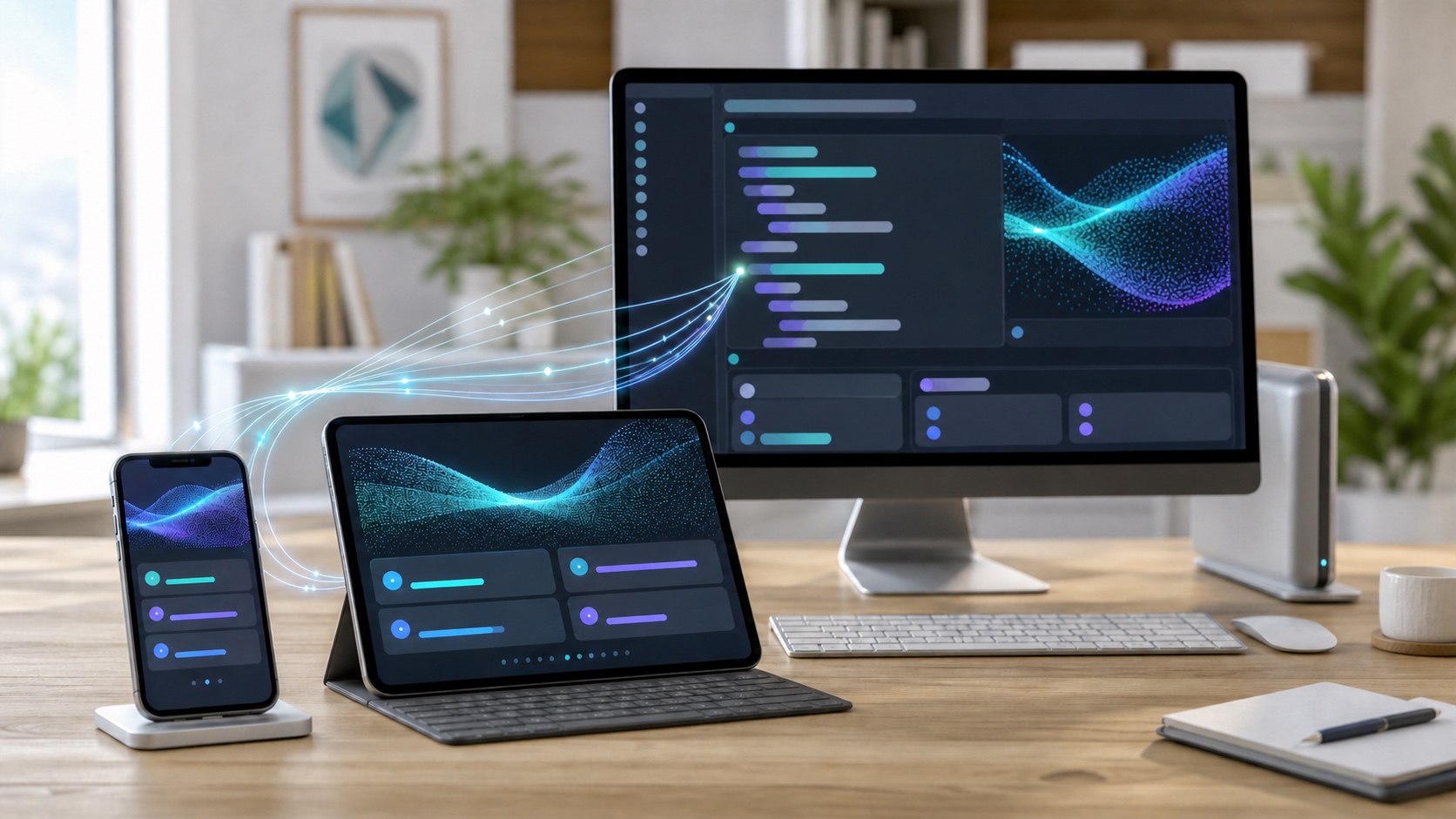
Codex can request a decision or finish a test while you are away from your desk. Recreating a full terminal on a small screen is awkward, and exposing a development machine directly to the internet is not a sound workaround.
The current official approach is to open Remote in the ChatGPT iOS app and connect to Codex running through the ChatGPT desktop app on a Mac or Windows computer. Your iPhone or iPad becomes the place where you send instructions, approve actions, and review progress. The repository, credentials, tools, and command execution remain on the connected host.
Based on OpenAI's Codex mobile announcement, the official Remote connections guide, and Help Center documentation available on July 27, 2026, this guide explains what you need, how to pair your devices, what you can do remotely, and where the limitations remain.
Use the ChatGPT iOS App on Both iPhone and iPad
The mobile entry point is the official ChatGPT iOS app published by OpenAI in the App Store. OpenAI's iOS app FAQ recommends checking the publisher so that you install the official app.
You do not need a different app for an iPad. OpenAI's Help Center explicitly says the ChatGPT iOS app supports both iPhone and iPad. Update the app, then sign in with the ChatGPT account and workspace you already use for Codex.
OpenAI's June 25, 2026 release notes say Codex Remote is generally available on all ChatGPT plans. You still need Codex access in the account and workspace you intend to use. Availability may also differ because of supported regions, rollout timing, or organization policy. If Remote is missing, update both the mobile and desktop apps before troubleshooting anything else.
Remote Depends on a Mac or Windows Host
The central idea is easy to miss: your iPhone or iPad does not become the development machine. Remote gives the mobile device access to an environment running on a connected host.
Use a Mac or Windows PC with the latest ChatGPT desktop app as the host. Prepare the repository, development tools, credentials, plugins, and skills on that computer in advance. File operations and shell commands requested from mobile run on the host or on an SSH environment already connected through it.
This design lets you keep using your normal development environment without copying local files or secrets to the iOS device. The tradeoff is that Remote stops if the host sleeps, loses its network connection, or closes the desktop app. For longer sessions, connect the host to power and review the keep-awake option in its connection settings where available.
How to Set Up Codex Remote
Setup begins in the ChatGPT desktop app on the computer you want to reach. It cannot be initiated from the Codex CLI or IDE extension.
- Update the ChatGPT desktop app on your Mac or Windows PC and sign in to the account and workspace you use for Codex.
- Open the target project on the host and confirm that its dependencies and required credentials work.
- Select “Set up Remote” in the desktop app sidebar.
- Scan the displayed QR code with your iPhone or iPad.
- In the ChatGPT iOS app, confirm that you are using the same account and workspace as the host.
- Complete any required multi-factor authentication, SSO, or passkey steps.
- Open Remote in the iOS app, then choose the paired host and project.
Pairing is one-to-one between a controlling device and a host. If you use several iPhones, iPads, or host computers, pair each device-host combination you want to use. In a Business, Enterprise, or Edu workspace, an administrator may also need to enable Remote Control.
What You Can Do from Mobile
Once connected, you can start a new Codex thread in a project on the host or open an existing thread and send follow-up instructions. When Codex needs a choice or permission to continue, you can respond from the iPhone or iPad.
The official guide lists these core capabilities:
- Start new threads and continue existing work
- Send follow-up instructions and steer an active task
- Approve commands and other actions
- Review outputs, code diffs, test results, terminal output, and screenshots
- Receive notifications when work finishes or needs attention
- Move between connected hosts and threads
An iPhone is convenient for responding to a notification or adding a short instruction. An iPad's larger display makes longer output and diffs easier to inspect. Even so, a desktop remains the better place for final review of a complex patch, conflict resolution, or precise graphical work.
Security and Practical Limitations
OpenAI says Remote uses a secure relay layer so trusted machines remain reachable without being exposed directly to the public internet. Repositories, local documents, credentials, and tools remain on the host, while its sandbox settings, security controls, and approval rules continue to apply.
Remote approval still deserves the same care as approval at your desk. Read the proposed action before allowing deletion, external transmission, dependency changes, deployment, or Git operations. In public places, protect the screen from shoulder surfing and use a device passcode plus multi-factor authentication on the ChatGPT account.
Manage paired devices from “Settings > Connections” on the host. Signing out of ChatGPT disables Remote Control but does not delete existing pairings, so explicitly review and remove a lost or retired device from the connection list.
Start with a Small, Verifiable Task
For a first test, choose work whose result is easy to inspect: a README typo, an explanation of existing code, or an investigation into a failing test. Avoid beginning with a broad migration or deployment.
After preparing the project on the host, try a request such as: “Run the tests and identify the cause of the failure. Do not change any files yet.” Confirm that terminal output reaches the mobile app, that Codex stops for actions requiring approval, and that you understand what happens when the host sleeps.
The value of mobile Codex is not writing an entire feature on a small screen. It is responding at the moment your judgment matters, reducing idle time, and returning to the desktop with the work ready for a proper review.
Summary
To use Codex from an iPhone or iPad, install the official ChatGPT iOS app and configure Remote from the ChatGPT desktop app on a Mac or Windows host. After QR pairing, you can start or continue threads, send instructions, approve actions, and review diffs and test results from the mobile device.
Because execution remains on the host, keep that computer awake, online, and signed in to the same account and workspace. Update both apps and begin with a low-impact investigation before expanding the workflow.
Codex is most useful in your pocket not when you rush to write code, but when one timely decision keeps careful work moving.
Primary sources checked
Important claims should also link to the relevant source in the article body.
- Remote connectionsOpenAI · official-documentation · Checked: 2026-07-27
- ChatGPT Release NotesOpenAI Help Center · official-release-notes · Checked: 2026-07-27
- ChatGPT iOS App FAQOpenAI Help Center · official-help · Checked: 2026-07-27
- Does the ChatGPT iOS app work on iPad?OpenAI Help Center · official-help · Checked: 2026-07-27
- Work with Codex from anywhereOpenAI · official-blog · Checked: 2026-07-27