Xcode, VS Code, and ChatGPT: edit and verify a Swift change
Take one Swift change from VS Code editing to Xcode verification. Separate package tests, app signing, unsaved-file conflicts, and screen behavior.
2 min read
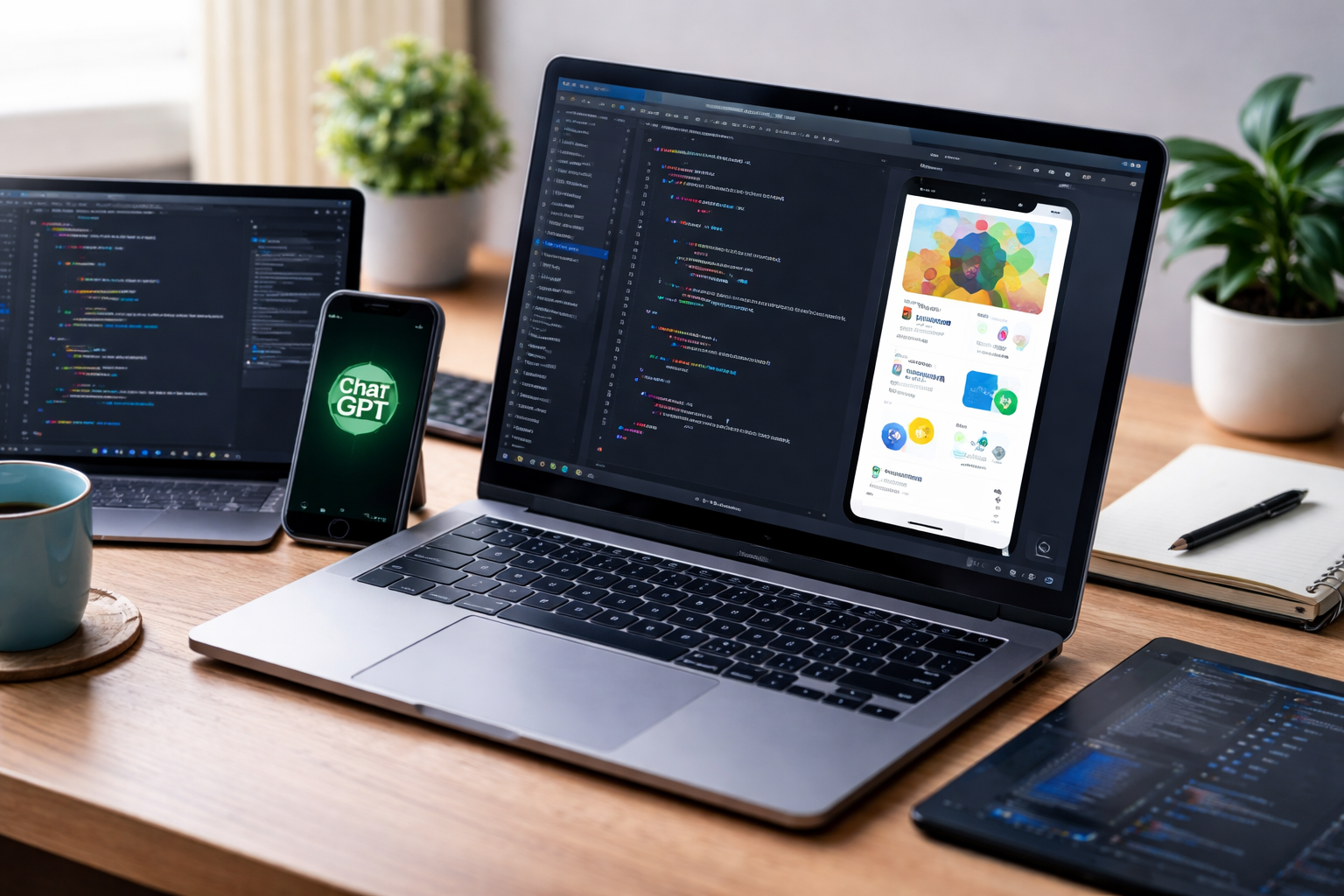
For an iOS app, use Xcode to verify targets, signing, and the simulator; use VS Code for editing and ChatGPT for design discussion when useful. Adding tools does not automatically improve performance. Work on the same files and verify in the intended build environment.
Distinguish a Swift package from an iOS app
The official VS Code Swift guide documents Swift Package Manager build tasks, debugging, and testing. The previous claim that VS Code cannot build is incorrect.
A passing package test does not verify iOS signing or screen behavior. Consult Apple's Xcode support table for the required Xcode and macOS combination.
Take one change through the workflow
Consider an illustrative change: disable Save when input is empty.
- Run the current app in Xcode and reproduce the behavior.
- Preserve the Git state and original files.
- Open the same repository in VS Code and edit the view and validation.
- Return to Xcode and ensure it loaded the external changes.
- Test empty input, whitespace, and valid text.
Avoid unsaved edits to the same file in both editors. If a conflict appears, compare the disk version with the editor buffer before saving.
Give AI a minimal reproduction
Describe the failing button, relevant view and state, and the three expected cases. There is no need to paste signing credentials or the entire project. Inspect whether the proposal changes dependencies or targets.
Identify the failing layer
| Symptom | Check |
|---|---|
| Editor diagnostics only | Swift extension and selected toolchain |
| Package test failure | Input, expected result, dependencies |
| App build failure | Xcode target, SDK, build log |
| Failure only on a device | Signing, device, OS conditions |
| Screen does not update | Saved file and active run target |
Do not begin by deleting caches. Align the first error and working directory. Verify the Xcode build and screen interaction before committing the intended change.
Primary sources checked
Important claims should also link to the relevant source in the article body.
- official VS Code Swift guidecode.visualstudio.com · official-documentation · Checked: 2026-09-05
- Apple's Xcode support tabledeveloper.apple.com · official-documentation · Checked: 2026-09-05