Installing LuLu on macOS and Reviewing Its First Outbound Alerts
Install LuLu from its official distribution, review process, signature, origin, destination, and rule duration, and understand what an outbound firewall cannot guarantee.
3 min read
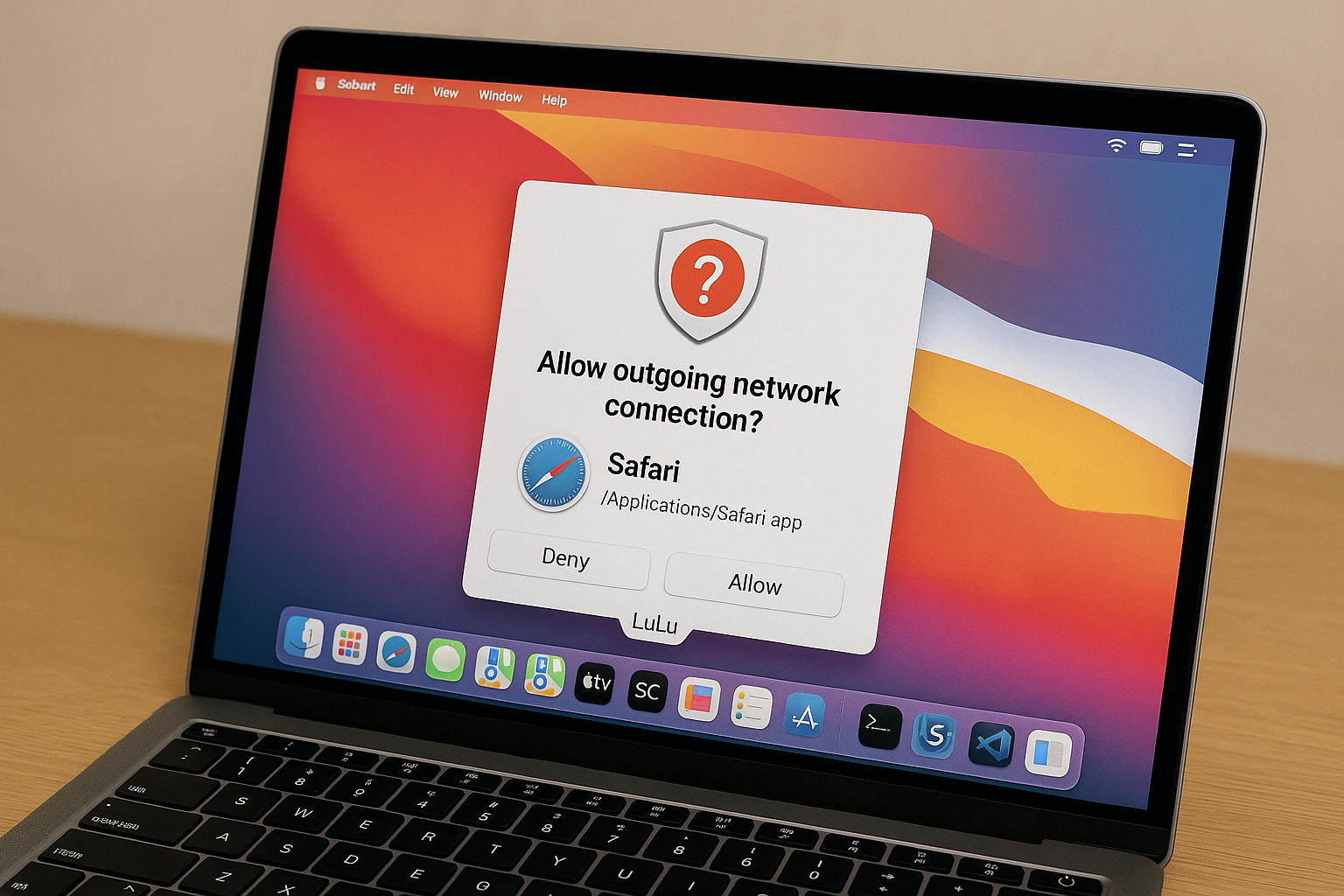
LuLu is an open-source outbound firewall that alerts when a process creates a new unauthorized outgoing connection and lets the user create an allow or block rule. An alert is not proof that the process is malicious, and installing LuLu does not guarantee that malware is prevented.
Update macOS first
Apple describes layers including Gatekeeper and Notarization, XProtect detection and blocking, and remediation. Review Apple's malware protection documentation, keep system and security updates enabled, and use trusted software sources.
LuLu does not replace those layers. Apple's built-in firewall primarily controls incoming access, while LuLu is designed around outgoing connections.
Verify the official distribution
Use the LuLu product page to confirm current macOS requirements, version, published SHA-256, and installation steps. Do not use a third-party repackaging site. Approval screens can vary by macOS version, so follow the current vendor instructions.
Review five fields in the first alert
| Field | Evidence to check |
|---|---|
| Process | full executable path, not only the display name |
| Signature | signer and whether the binary appears altered |
| Origin | parent process and the user action just performed |
| Destination | host, address, port, and documented purpose |
| Duration | whether a process-lifetime or expiring rule can be tested first |
LuLu's documentation explains that a default decision applies to the process, while destination-scoped and time-limited rules are also available. Do not turn an unknown connection into a permanent allow rule merely to remove the alert.
When a connection is unclear
- Record process, path, signature, destination, and time.
- Pause sensitive work and review the application's official documentation and change log.
- Update the operating system and application, then reproduce the connection.
- If disclosure may have occurred, disconnect as appropriate, rotate affected credentials from a known-safe device, and seek qualified incident-response help.
Blocking broad system traffic without understanding it can break updates or synchronization.
Documented limits
The vendor states that LuLu monitors outgoing traffic only and that some traffic may not be routed through Network Extensions, so it may not be seen or blocked. Hostname blocking also has macOS framework limitations. Blocking a connection does not undo previous disclosure or prevent every file-access, privilege, or alternate-channel behavior.
Recover after blocking a connection
If you accidentally block a needed connection, note the application and executable path, then locate that entry in LuLu's rules. Change only the relevant rule, avoiding similarly named applications or a global protection setting.
Reopen the app and repeat the one operation that failed. If only update checking failed, test update checking. If it still fails, investigate the destination, another process, or an application issue instead of removing more restrictions. This is a diagnostic procedure, not a claim that every connection was tested on a physical Mac.
Conclusion
LuLu is a supplemental observation and control layer. Combine it with operating-system updates, trusted software sources, least privilege, backups, and credential hygiene, and base each rule on the five recorded fields rather than the presence of an alert alone.
Primary sources checked
Important claims should also link to the relevant source in the article body.
- LuLuObjective-See Foundation · provider-primary-source · Checked: 2026-07-26
- Protecting against malware in macOSApple · official-documentation · Checked: 2026-07-26
- Firewall security in macOSApple · official-documentation · Checked: 2026-07-26