Is Chrome Slow Because of Your Tabs? How to Check Memory Usage
Check memory by tab and process in Chrome, identify what is slowing it down, and adjust Memory Saver safely.
5 min read
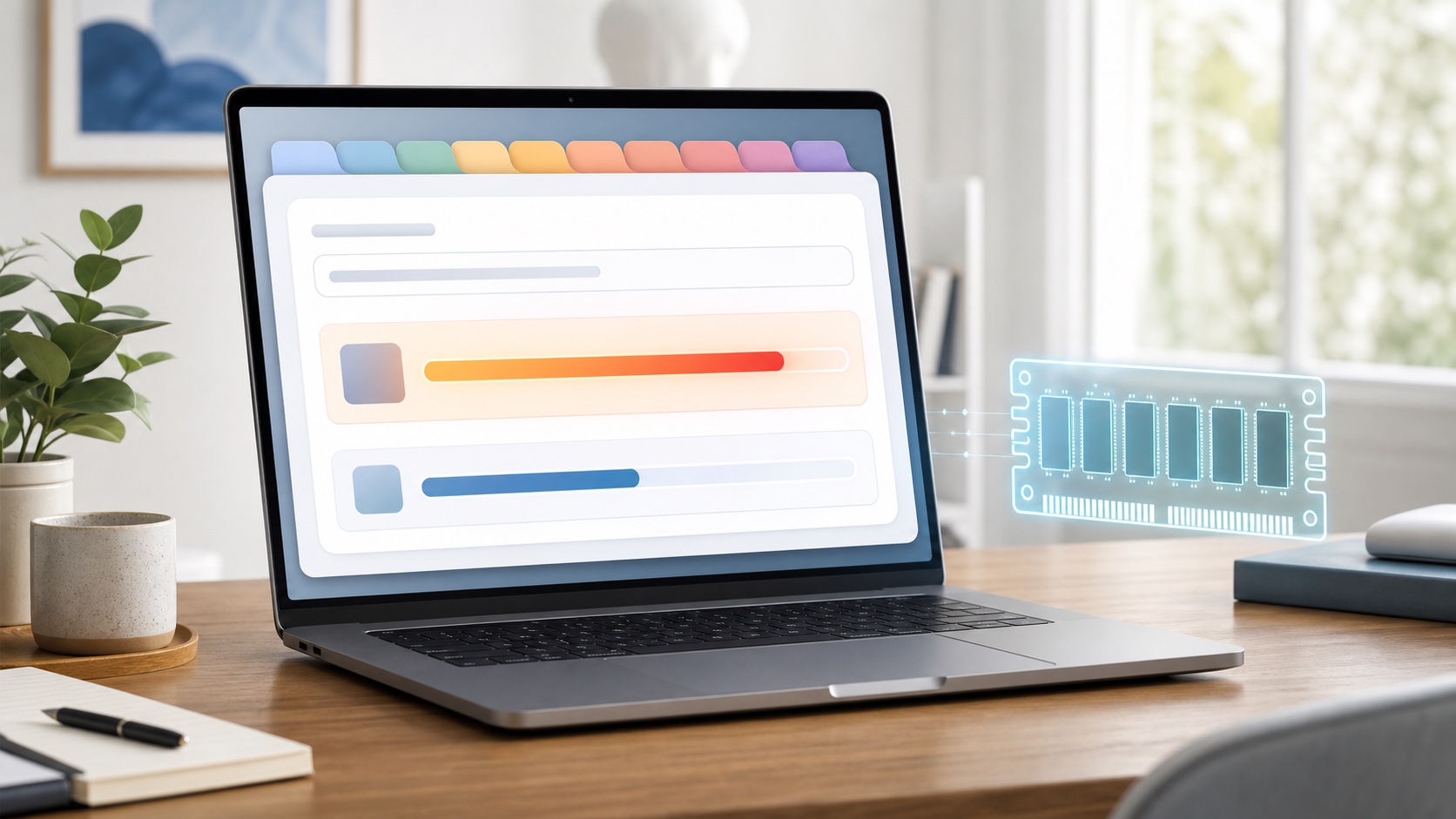
Is Chrome slow because of your tabs? Tabs can contribute, but the count alone may hide a demanding web app or extension.
A useful starting point is to check memory usage by tab, then inspect Chrome's built-in Task Manager. Check before closing anything so you can find the cause without losing needed pages or work.
This guide walks through a quick per-tab check, a detailed process check, safe corrective steps, and the current Memory Saver controls.
Tabs are not the only reason Chrome can feel slow
More tabs can use more memory for page rendering and scripts. A video, web conference, editor, or complex app may also use substantial resources with only a few tabs open.
Official Chromium architecture documentation shows that Chrome uses separate browser, page, GPU, network, and extension processes. This helps stability, but memory usage is not simply the number of tabs multiplied by a fixed amount.
Ten lightweight pages may use less than one demanding web app or extension. Instead of starting with the tab count, start by finding which item is consuming resources.
Start with memory usage in tab hover cards
Desktop Chrome can show a tab's memory usage in the preview card that appears when you hover over it. Google Chrome Help says this display can be turned on or off under Appearance. On Windows, Linux, and Chromebook, the control is under the tab hover preview card settings; on Mac, it is the memory display on the tab hover preview card.
Once enabled, hover over the tabs you normally use and identify any that stand out. For each candidate, check whether it:
- Is playing video, hosting a call, or running an editor
- Continues working after you have finished using it
- Remains unusually large after a reload
- Duplicates another tab from the same site
This is a convenient first check, not a complete list of everything Chrome is running. It does not replace a process view of the browser or extensions, and memory values can change as a page's state changes. Use the hover card to choose what to investigate next, not to declare a culprit from one reading.
Use Chrome's Task Manager to isolate the cause
For a fuller view, open Chrome's menu and choose More tools, then Task Manager. On supported systems, Shift + Esc opens it directly. If the shortcut does not respond, or if you are on a Mac, the menu route is the dependable option.
Select the Memory footprint column to sort tasks from highest to lowest. Review extensions and background pages as well as tabs. Google Chrome Help specifically recommends sorting by memory and looking for resource-heavy tasks you no longer need.
Do more than take a single snapshot. Repeat the action that makes Chrome feel slow and watch for an item that rises at the same time. If reloading one page improves the situation, its state may have been temporary. If an extension repeatedly stays near the top, disable that extension once and test again.
The End process button can close a selected task and reclaim its memory. There is an important tradeoff: Google warns that unsaved work in that task will be lost. Save documents, form entries, and transaction progress before ending anything.
What to do after you find a likely cause
Close a tab you no longer need, or save it to bookmarks or your reading list if you only want to revisit it later. If a necessary page has become temporarily heavy, save your work and reload it. When one site repeatedly causes trouble, check for active media, live editing sessions, or other work the page is still doing.
If an extension is the likely cause, disable extensions one at a time and try to reproduce the slowdown. Changing everything at once makes it difficult to identify what actually helped. Remove extensions that you no longer use to reduce unnecessary background activity.
Ending the biggest process is not always a lasting fix. If the same usage returns immediately, investigate how the page or extension is being used. You may also need to check the computer's overall available memory, including applications outside Chrome.
How to use Memory Saver without disrupting work
Memory Saver is available under Settings and Performance. Current Google Chrome Help lists Moderate, Balanced, and Maximum levels, with Balanced recommended. Chrome deactivates tabs you are not using to free memory for active work, then reloads an inactive tab automatically when you return to it.
The benefit is that you can keep tabs available while giving more resources to what you are using now. The tradeoff is that returning to an inactive tab may require a reload and a short wait. Depending on the page, you may also need to confirm that its previous state or work was preserved.
Active audio or video, calls, screen sharing, downloads, partially completed forms, pinned tabs, and connected USB or Bluetooth devices can prevent deactivation. Sites that must keep working can be added to an always-active exception list, but too many exceptions reduce the memory savings.
Chrome can also show a performance issue alert and suggest deactivating resource-heavy tabs. Use that notification as a prompt to inspect the situation rather than relying on it alone; hover cards and Task Manager provide more context for deciding what to keep.
Keep before-and-after conditions comparable
Compare the same pages, actions, and waiting interval, not just tab counts. A playing video and a paused tab do not isolate Memory Saver's effect. Record browser and OS versions and enabled extensions.
Use five fields: the sluggish action, the relevant Chrome Task Manager entry, overall system memory (Activity Monitor memory pressure on a Mac, or the Memory view in Windows Task Manager), the changed setting, and whether the symptom recurs. If it does not improve, restore the setting before trying another extension. This procedure designs a comparison; it does not promise a fixed reduction.
Summary
Tabs can make Chrome slower, but the number of tabs is not enough to identify the cause. Start with tab hover cards, then use Chrome's Task Manager to sort tabs, extensions, and background activity by memory.
To act now, save your work and change just one high-usage item: reload its page, disable its extension, or close it if it is no longer needed. If you regularly keep many tabs open, try Memory Saver on Balanced and reserve exceptions for sites that genuinely need continuous activity.
Finding one unusually heavy task can protect more of your work—and improve Chrome more effectively—than closing every tab at once.
Primary sources checked
Important claims should also link to the relevant source in the article body.
- Boost your browsing with Chrome's new performance controlsGoogle · official-announcement · Checked: 2026-07-30
- Personalise Chrome performanceGoogle Chrome Help · official-help · Checked: 2026-07-30
- Speed up Google ChromeGoogle Chrome Help · official-help · Checked: 2026-07-30
- Multi-process ArchitectureThe Chromium Projects · official-documentation · Checked: 2026-07-30
- Memory Usage BackgrounderThe Chromium Projects · official-documentation · Checked: 2026-07-30